


 968
968
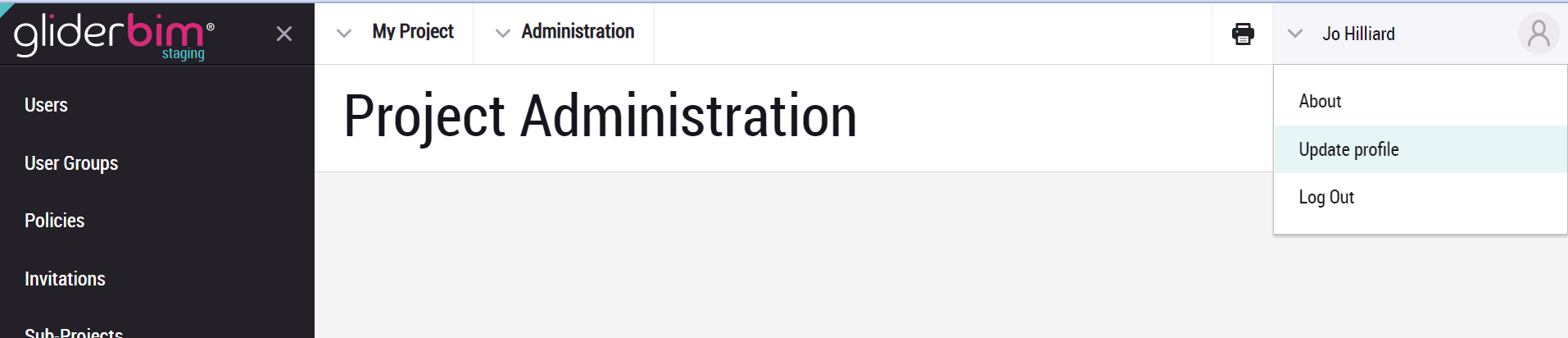
To enable 2 factor authentication you will need to navigate to ‘Update Profile’ after logging in. This option is found in the menu in the top right hand corner;
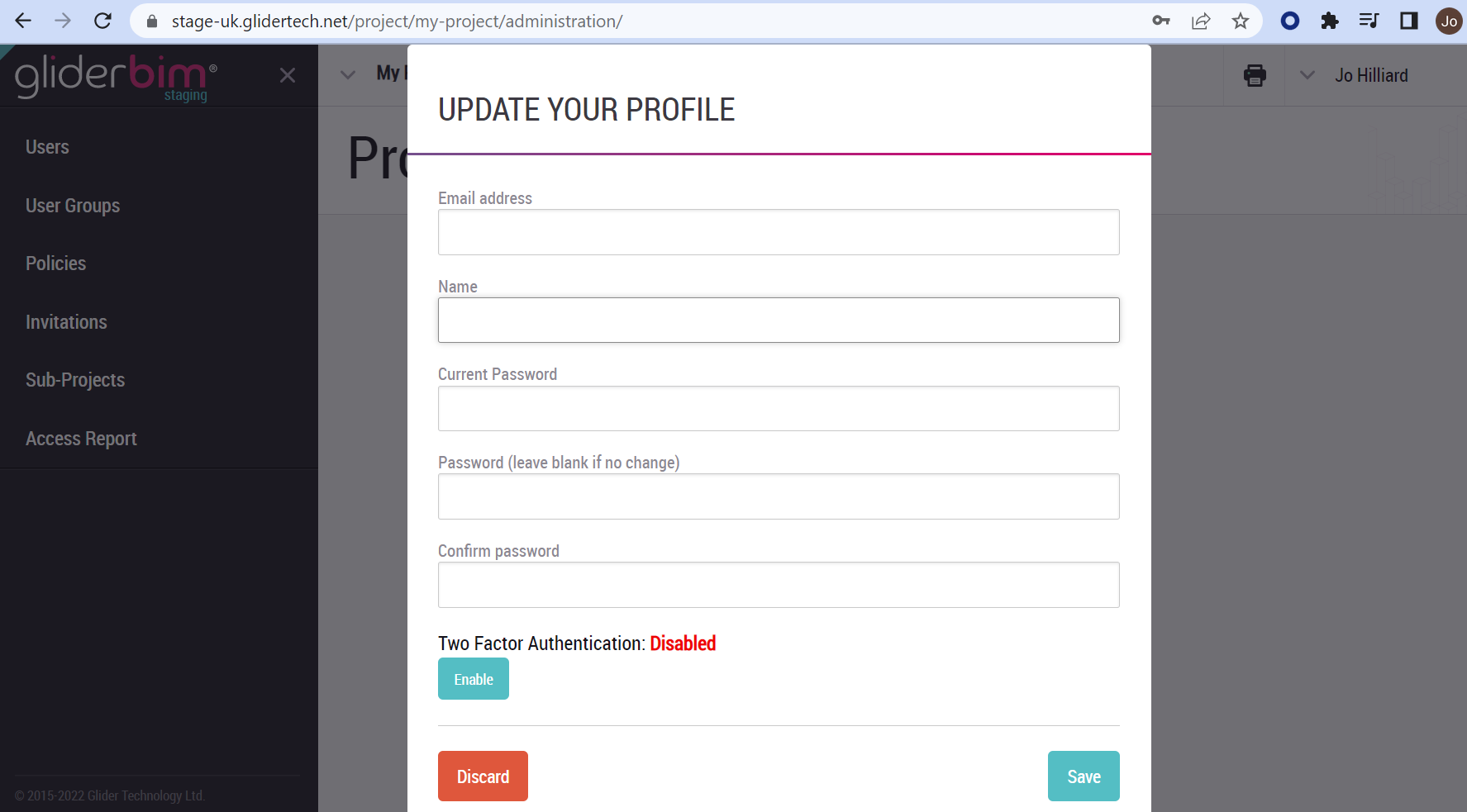
The next dialogue box will show the option to ‘Enable’ Two Factor Authentication.
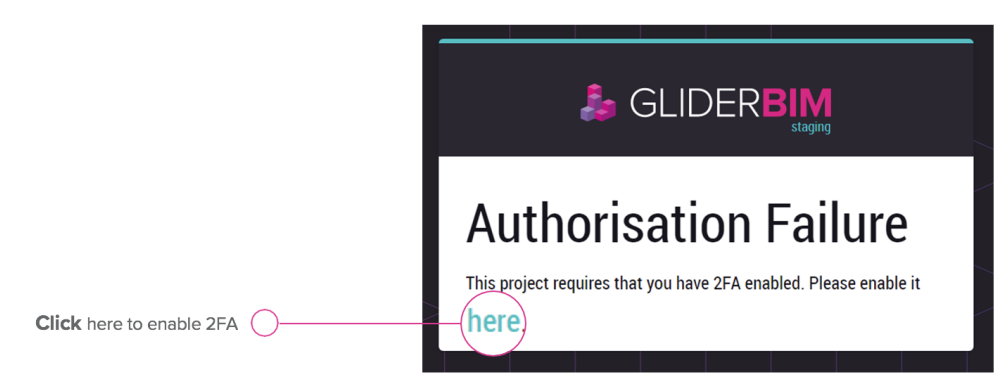
The next time the user goes to log in, they will be presented with a screen like this:
The user will then be asked to re-enter their password:
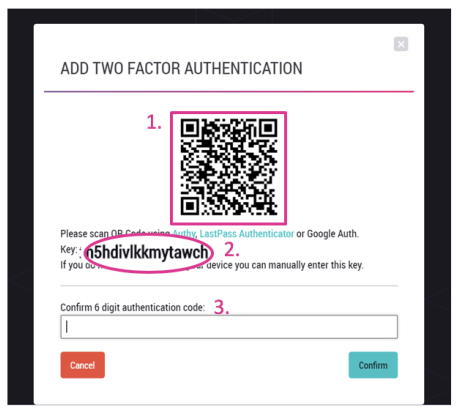
After the user enters their password, they will then be presented with a QR code.
The user will now need to download an Authentication app onto a device they have sole and regular access to such as a desktop, phone, laptop or tablet.
-
QR Code to be scanned by device (that has a camera)
-
Manual key, to use instead of the QR Code
-
After scanning or entering the code, a 6 digit code will be returned by the app.
After entering the code a backup code will be issued which needs to be saved somewhere safe in the event of access to the app being lost.
A new 6 digit code will be required each time the user logs in addition to their password.
Please ensure the user acknowledges the below:
- The backup code has been saved
- The app must not be deleted
- The device used does not belong to another individual

