Accepting an Invitation

Mar 18, 2025
 293
293
To gain access to gliderbim® a new user must be invited. The user themselves will then create their own password.
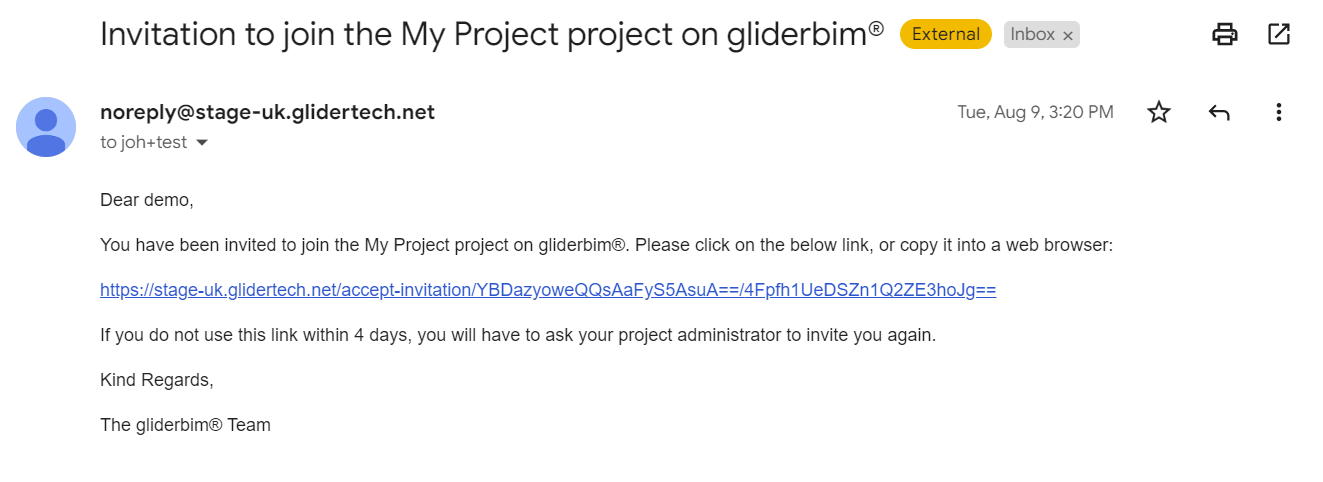
An invite will arrive in the form of an email link and look similar to the below:
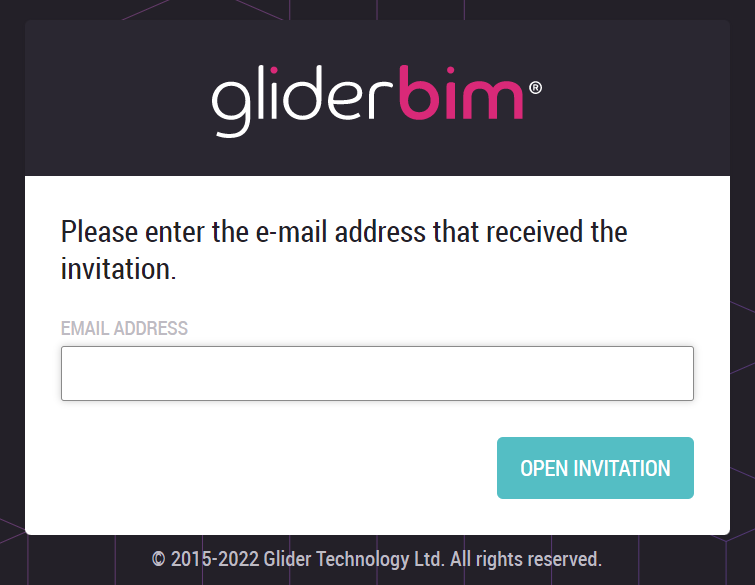
The user will be guided to confirm their email address:
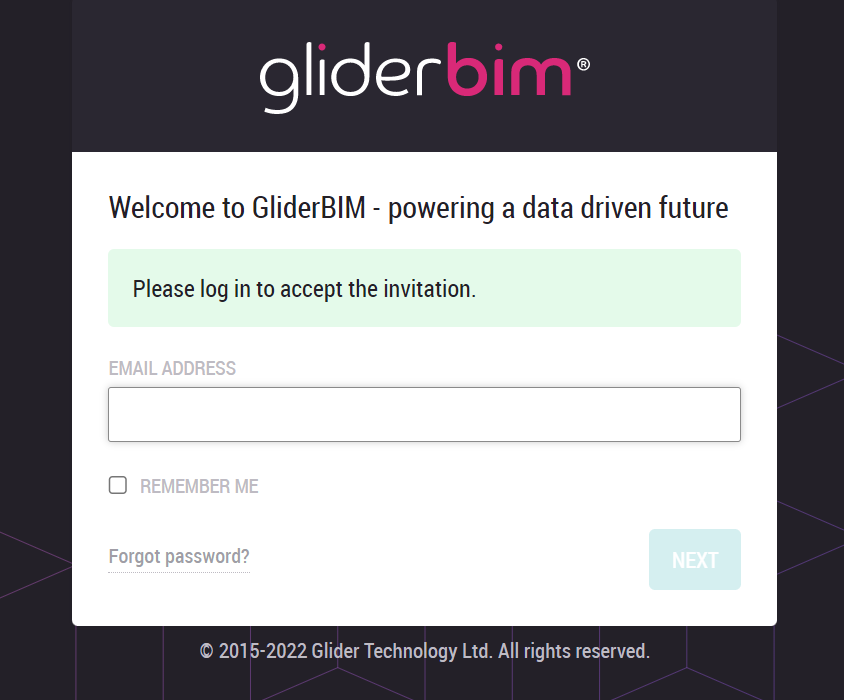
The user will then be prompted to log in:
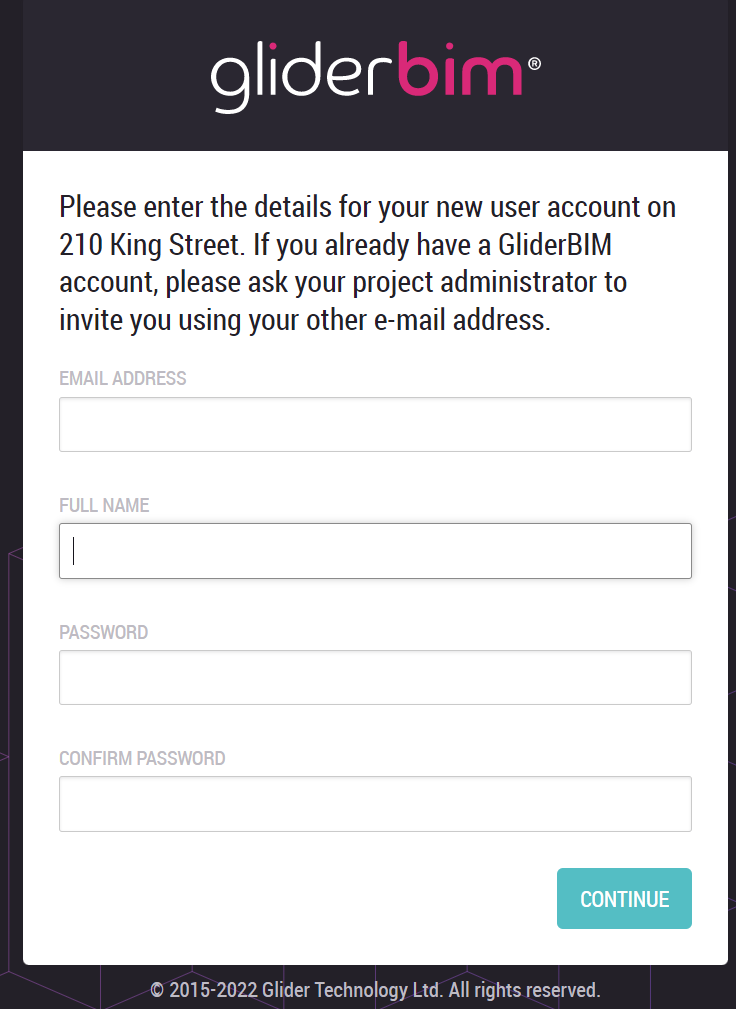
If this is the first project this user has been invited to, they will be prompted to create a password:
Passwords must be at least 10 - 64 characters long and contain at least one letter, number or symbol.